 SixOnFive
Messages
Team Chat, topics, game chats, private messages, photos, search, and how to report, hide or turn messages off.
Messages on the bottom bar is a list of your team's chats: Team Chat first, then topics and private chats, newest first, each with a red count of what you haven't read.
Team Chat and topics
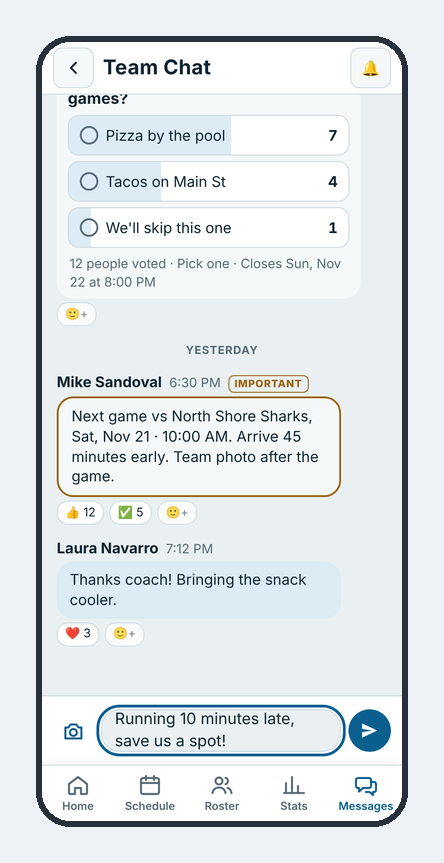
Team Chat is for everyone on the team: rides, pool changes, "we're at the far end". The Head Coach and Staff can start topics (one about the team party, one about carpools) and close them when they're done. Every game also has its own chat, opened from Chat on the game; it shows in the list once someone posts.
Coaches and Staff can tick Important (also email everyone and pin it) for messages nobody should miss, and pick how long it stays pinned: 1 day, 3 days, 1 week (the usual) or until you unpin it. After that it comes off the top by itself and stays in the chat with its Important tag. At most 3 messages are pinned at once; a newer one pushes the oldest off. Coaches see when each pin comes off ("Pinned until Sat 11/22"), and can Unpin sooner from the message.
Private messages
Tap + (bottom right), then Private message, and pick one person or a few (the coach, a parent). Only the people in it see it: not other families, not Staff. The Head Coach can turn private messages off for the team.
Photos and reactions
Tap 📷 to add a photo from your camera or library. Tap a photo in the chat to see it full size. Only post photos of players with their families' OK. Tap 🙂+ under a message to react.
Polls
Need a quick answer, like dinner after the game or who can drive? Tap +, then Poll, or in Team Chat or a topic tap Poll next to the camera. Type the question and 2 to 6 choices, then pick whether people can choose more than one, whether to Show who voted for what, and when it closes. Tap Post poll.
Everyone taps a choice to vote, and taps it again to take the vote back. The results update as people vote. The Head Coach and Staff start polls; the team can let families start them too (Team settings → Families can start polls). Families see who voted only when the person who started the poll turned on names. Whoever started it, the coach or Staff can Close poll.
Search
Type at least two letters in Search messages at the top of the list to find words, names or topics in Team Chat, topics and your own private chats. Tap a result to jump to that message.
Report or hide
If a message is offensive or abusive, tap it and choose Report. It goes to SixOnFive, we look at it within 24 hours, and you won't see that message again.
Choose Hide messages from a person to stop seeing anything they post, on every team, with no pop-ups from them. You can do the same from their card on the Roster. Undo it in Account → People you hid.
Turn messages off
Just want the games? At the bottom of the list of chats, tap Turn messages off for me. No chats, no chat pop-ups, no Important emails, and nobody can start a private message with you. The schedule, RSVPs, live games and stats stay the same. Tap Turn messages on any time to come back.
Grandparents and friends who join as Family/friend start with messages off; parents and Staff start with them on.