 SixOnFive
Schedule and RSVP
The calendar of all your teams, each game's page, RSVP, directions, volunteer jobs, tournaments and your phone's calendar.
Schedule on the bottom bar is a month calendar of every team you're on. Each team's own page also has a Schedule tab with what's coming up for that team.
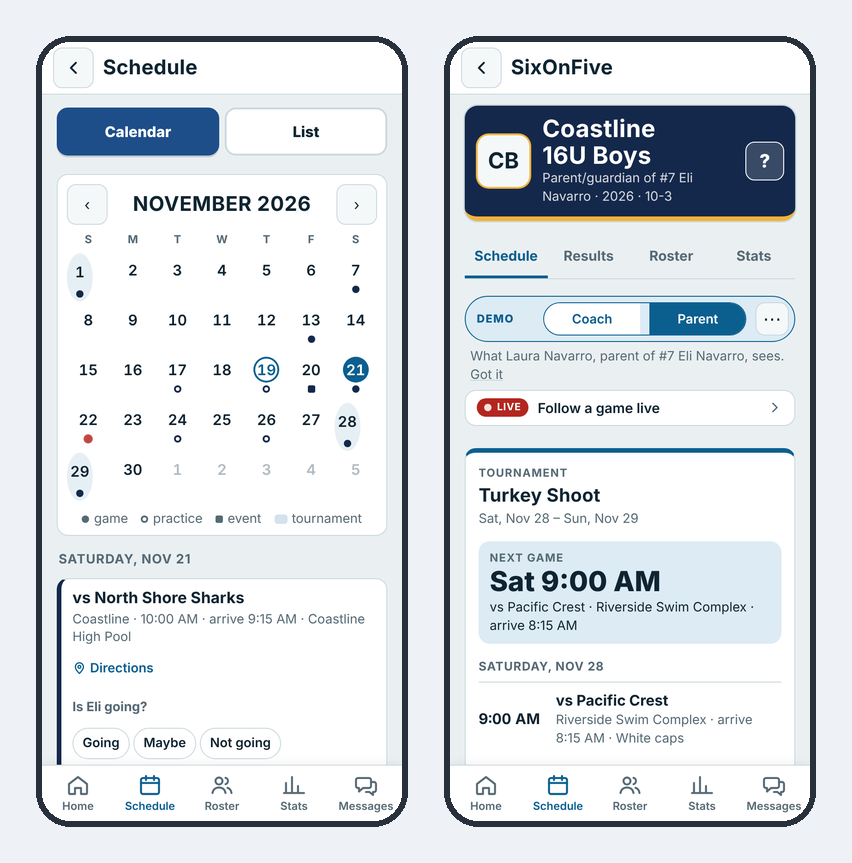
The calendar
Each day with something on it has a dot in the team's color: a ring for a practice, a square for a team event, a shaded day for a tournament, and red while a game is live. Tap a day to see what's on it. Switch between Calendar and List at the top; with more than one team, the team chips filter it.
On a team's Schedule tab, the next event is a full card. Everything after it is one line, grouped by week. Played games move to Results, and a cancelled practice or game shows in red, crossed out.
Each game's page
Tap any game, practice or event for its own page:
- Date, start time, arrive-by time and cap color (Dark or White)
- The pool with its address, and Directions (opens your maps app)
- Who's coming: your RSVP. The Head Coach and Staff see every answer by name.
- Who's bringing what: volunteer jobs, if the team uses them
- Its own chat, and the Live link to share
- For scorers: Score. Once it's started: Follow live, then its results.
RSVP
Each game and practice asks Going, Maybe or Not going.
| You are… | You answer |
|---|---|
| A parent/guardian | For your player ("Is Ava going?"). Either parent can answer; the latest answer stands. |
| Head Coach or Staff | For yourself ("Are you going?") |
| Family/friend | No RSVP; you just follow along |
The day before, anyone who hasn't answered gets a pop-up with the Going / Maybe / Not going buttons right in it. On game day, players marked Not going start unticked on the scorer's Who is here? list.
Volunteer jobs
If your team uses them, each game shows jobs like Scorer, Game clock, Shot clock, Snacks or Driver, with how many are still open. Tap Take it to sign up; tap ✕ to take yourself off. The day before, you get a thank-you reminder.
Tournaments
A tournament weekend shows as one card: games played with their scores, and what's next. When the coach knows the bracket, each game shows If we win and If we lose. Once a result is in, SixOnFive drops the branch you didn't take and sends the team a pop-up with the next game, its pool and time. When the coach imported the tournament's sheet, new games and changed times appear by themselves.
Head Coach or Staff: to bring in a whole tournament at once, tap + Add to schedule, then Tournament from its sheet, and paste the link to the tournament's Google Sheet. See Import a tournament from its sheet.
Every game on the card shows its day and start time, like "Sat 1:30 PM", and the arrive-by time when there is one. The next game you play shows big at the top of the card, with how long until it starts on game day. A game whose time isn't set yet says Time TBD.
On your phone's calendar
On the Schedule, open On your phone's calendar and tap Get my calendar link. Then choose Apple Calendar or Google Calendar, or copy the link. Every game and practice on your teams shows up there and stays up to date, including changes and cancellations.