 SixOnFive
Scoring a game
Start a game, take the sprint, score every play, fix mistakes, finish, and score with a partner.
- Before the game
- Start every quarter with the sprint
- The scoring board
- Scoring a goal, step by step
- Other plays
- Fixing mistakes
- Ending quarters and the game
- Scoring with someone else
Anyone with scoring rights (Head Coach, Staff or a Scorer) can score. Every play saves on your phone first, so a dead spot at the pool loses nothing; it sends when signal comes back. Keep the paper score sheet as the official record.
Before the game
- Open the game from the Schedule and tap Score. No game on the schedule? Tap + Add to schedule, pick Game, fill in the opponent, date and time, and tap Save and start scoring.
- On the New game screen, check the details, the cap color (Dark or White) and the game type. Scrimmages can be left out of season stats.
- Check Game rules (quarter length, timeouts, overtime, ejection length). The team's default is usually right.
- Optional: paste Their roster (one per line, cap then name). Otherwise score by cap number; you can name a cap during the game.
- Under Who is here?, tap Here off for anyone who isn't at the game. Players whose family answered Not going start unticked.
- Tap Start game.
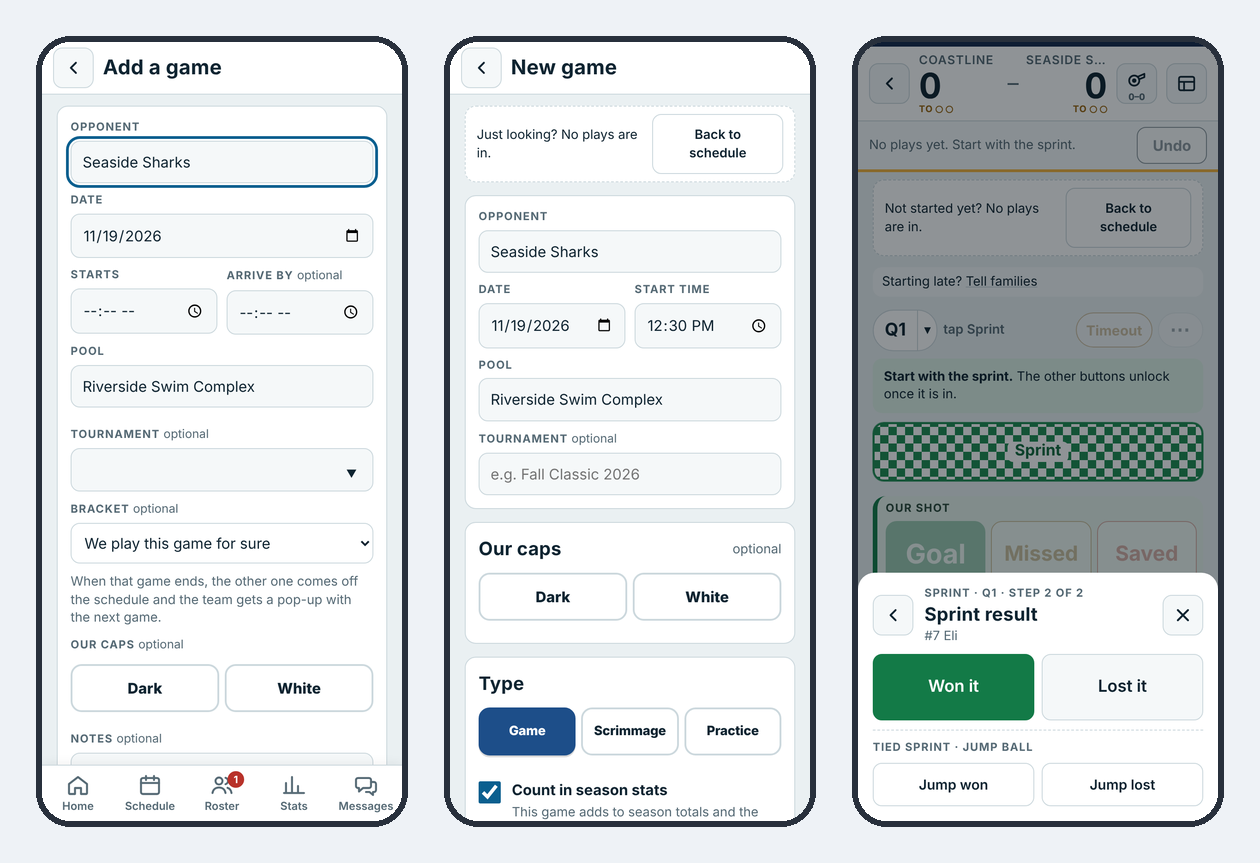
Started the wrong game? While no plays are in, tap Back to schedule and the game goes back on the Schedule with its details kept.
Start every quarter with the sprint
The board stays locked until the sprint is in. Tap Sprint, pick who swam it, then Won it or Lost it. A tied sprint is Jump won or Jump lost.
The scoring board
The board has four panels. Green panels are good for us; red panels are good for them.
| Panel | Buttons |
|---|---|
| Our shot | Goal · Missed · Saved |
| Our play | Steal · Field block · Ejection drawn · 5M drawn |
| Against us | Turnover · Ejection · 5M penalty |
| Opponent shot | Save · Miss · Goal, with our goalie above |
The bar above the panels holds the score and timeouts, Timeout, the ⋯ button for rare plays, and the quarter pill: End Q1 once the sprint is in. Tap its ▾ to jump to another quarter or change the rules. The whistle shows fouls (us–them) and turns red when someone is in foul trouble. The goalie button (In goal: #1 Ryan ▾) switches goalies. An eye shows how many people are following live.
In bright sun, tap Sunlight (above End game) for a bold, high-contrast screen.
What shows on the board depends on what your team tracks. A Basic team skips the pool, cage and shot-type steps below.
Scoring a goal, step by step
- Tap Goal.
- Who scored? Tap the player.
- Assisted by? Tap the player, or No assist.
- Where did they shoot from? Tap the pool. (Advanced teams only. Skip is always there.)
- Where did it go in? Tap the spot on the cage, seen from the shooter. Pick the shot type (Direct, Skip, Lob) and situation if your team tracks them.
- Time on the scoreboard: type the clock as it shows on the pool scoreboard, like 3 4 2 for 3:42, then Save. With the scoreboard receiver, the time fills in by itself.
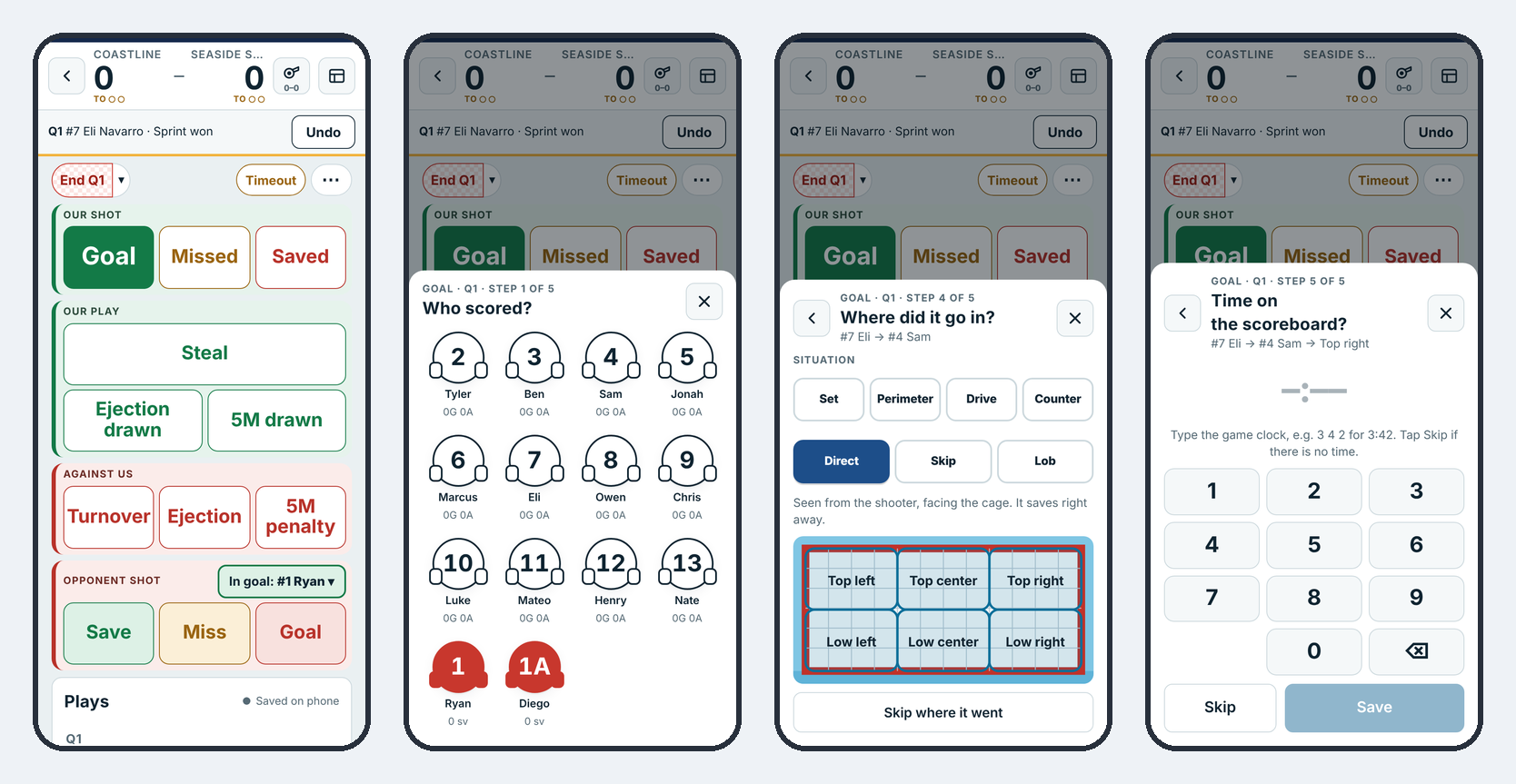
Missed and Saved work the same way, without the assist.
Other plays
- Steal: who, then Steal, Interception or Ball under.
- Turnover: who, then Turnover, Bad pass, 2 m offside, Offensive foul or Ball under.
- Field block: who blocked it. It's one play that records their blocked shot and our blocker. (Teams tracking where their shots went: tap their Miss, then Field block on the cage.)
- Ejection drawn and Ejection: who drew it or who was excluded. SixOnFive tracks the 6 on 5 (or 5 on 6) and ends it on the next play. With the receiver, it counts down the seconds left.
- 5M drawn and 5M penalty: walks you through the penalty shot.
- Opponent shot: type their cap number. Their players you've already used show as quick picks.
- Timeout: us or them, full or 30-second, or the referee. The lights under the score show how many are left.
- Fouls: tap the whistle for personal fouls by player; three fouls is out.
- ⋯ (rare plays): Misconduct / game exclusion, Penalty-exclusion, Double ejection, Card (yellow or red, players or coaches) and Cap swap.
Fixing mistakes
- Undo takes back the last play.
- Tap any play in the list below the board to Edit it (change the player, the play type, the assist, the shot spots) or Delete it. Score and stats update right away.
- A finished game can be fixed later from its box score with Reopen & edit, for example while watching film.
Ending quarters and the game
At the end of a quarter, tap End Q1 and confirm. The play list and live view get "End of Q1" with the score. The next quarter starts with its sprint. Ended a quarter by mistake? Back to Q1 undoes it.
After the fourth quarter, tap End game. If it's tied, the game rules decide what comes next: overtime periods, golden goal, then a shootout. In a shootout, the board changes to Our shooter and Their shooter.
Scoring with someone else
When you tap Score on a game someone already started, SixOnFive tells you who's scoring and asks what you want to do:
| Choice | What it does |
|---|---|
| Follow live | Just follow along |
| Score it too | Score your own second version. Families never see it; after the game, Review the differences to keep the right calls. |
| Score my part | When the team splits scoring duties: you score only your part (for example Defense), into the same game |
| Take over | Become the scorer, for example when the first scorer had to leave |
The top of your screen always says what you are: Primary scorer (your plays are what fans see), second scorer, or the part you cover.
Have to leave mid-game? Tap I have to go. Your part passes to whoever else is covering the game; otherwise the team's scorers get a pop-up to take over. If the primary's phone goes quiet for a few minutes, another scorer can tap Take over as primary.
The Head Coach or Staff set up split duties under Team settings → Scoring duties (see Running a team).